Find the socket, connect a compatible adapter and check communication in the app. Set up while stationary: Android pairing is not yet an active OBD session.
If you are starting from a warning light, consult your vehicle’s instructions first. To read data with the app, check adapter compatibility, locate the socket and prepare the connection while the vehicle is stationary. Once connected, keep the codes, units and observed circumstances; avoid conclusions based on a single number.
This guide covers SC OBD2 Legacy. Connections available today are Bluetooth Classic/SPP and Wi-Fi TCP/IP. BLE and USB are not supported in Legacy: they are planned for unreleased SCA Runtime. Check adapters and their status →
Before starting: what you need
SC OBD2 on Android and the correct adapter variant, not one selected on brand alone.
The vehicle manual for the diagnostic socket and ignition state; adapter instructions for power and connection.
A stationary vehicle and time to configure the phone without driving. Do not run the engine in an enclosed space.
Start with your car’s data
When your car behaves differently, the first question is where to start. Smart Control OBD2 brings the fault codes and data exposed by the vehicle to your Android phone through a compatible adapter. It can also be useful before a problem appears: learning what the readings mean and retaining comparable sessions gives you a reference for your car, whether it is recent or several years old.
A warning light may bring you to the app, but you can also use it to learn how your car behaves when it is running normally. Start by checking vehicle and adapter compatibility, then establish an OBD connection. The dashboard may retain information from a previous session: a displayed trip summary does not prove that new readings are arriving now.
Open Fault codes (DTC) when you want to inspect a diagnostic result, or Sensor monitoring to follow available parameters. Reading supported OBD data does not require a vehicle profile. To retain sensor samples, activate the vehicle and driver profiles and use a valid recording session. Missing values are not zero, and an unusual reading alone does not establish a fault.
Suppose fuel use seems different from usual. An isolated number tells only part of the story; revisiting earlier trips, the selected period and driving conditions helps you ask a better question. Has your route changed, were there more stops, or are you comparing different units? The app supplies information to put in context. It does not automatically attribute a change to a failed component or promise a saving.
A local archive has a practical benefit: saved sessions remain available on your device without being retrieved from a server. Local OBD readings require no SCA account, and the app has no advertising. That does not mean every feature is offline: Google Play, web content, online services and SDKs have their own requirements and privacy information. A vehicle profile is not an online registration.
Begin with the Free version to check the connection and basic data your car actually provides. Consider OBD2 Complete when additional eligible parameter selections, history beyond Free limits and supported exports are useful to you. It is a one-time software purchase without periodic renewal. Before a session you want to keep, check the recording setup: a useful archive grows from actual records, not readings reconstructed afterwards.
Can I begin without an account?
No SCA account is required for local OBD functions. A vehicle profile is local configuration, not an online registration. Google Play handles purchases and purchase checks.
What should I do first?
Set up and inspect the app while parked. Check the current connection status and an available reading before relying on the displayed session information.
Instructions and screenshots
Account, profile and GPS: what changes.
Three independent choices when using Smart Control OBD2 Legacy. Here is what remains available and which limits matter.
Without an account
No registration is needed to use OBD2 functions. The approach is local-first: vehicle profiles and data are managed on the device; exports and sending reports are explicit choices. This does not mean every communication is voluntary: diagnostic and analytics SDKs and online services may transmit data as described in the privacy policy.
You can read supported OBD2 parameters in real time without creating a profile. Without a real selected profile, new driving data does not populate permanent history; Stopwatch measurements remain in RAM. Results requiring profile parameters are unavailable without that data. A missing value is not zero.
Without GPS permission
OBD2 readings and diagnostics do not use GPS coordinates to communicate with the vehicle. Without location access, you do not get a new mapped location track or recording of new departure and arrival addresses or coordinates. Viewing maps or previously saved routes is separate: denying permission does not delete history.
A warning light may bring you to the app, but you can also use it to learn how your car behaves when it is running normally. Start by checking vehicle and adapter compatibility, then establish an OBD connection. The dashboard may retain information from a previous session: a displayed trip summary does not prove that new readings are arriving now.
Open Fault codes (DTC) when you want to inspect a diagnostic result, or Sensor monitoring to follow available parameters. Reading supported OBD data does not require a vehicle profile. To retain sensor samples, activate the vehicle and driver profiles and use a valid recording session. Missing values are not zero, and an unusual reading alone does not establish a fault.
Can I begin without an account?
No SCA account is required for local OBD functions. A vehicle profile is local configuration, not an online registration. Google Play handles purchases and purchase checks.
What should I do first?
Set up and inspect the app while parked. Check the current connection status and an available reading before relying on the displayed session information.
Connect the adapter and check the vehicle connection
Connecting an OBD2 scanner means establishing communication between the car, adapter, phone and app. Understanding that sequence prevents unnecessary retries: Android pairing prepares one part of the route, while SC OBD2 still needs a response from the vehicle’s control unit. You do not need to be a protocol expert to begin, but it helps to distinguish the stages and use the instructions for the exact adapter model.
With the vehicle stationary, locate its diagnostic socket using the vehicle handbook and connect a compatible adapter. Follow the manufacturer’s instructions for power and ignition position. For Bluetooth Classic, pair the adapter when required and select that same device in the app. For Wi-Fi, join the adapter’s network and use its documented address and port.
Start the connection in SC OBD2 and read the resulting status. If Android connects but the control unit does not respond, check the vehicle-side conditions instead of repeatedly pairing the phone. Once connected, inspect an available parameter and its unit. Do not expect every parameter to be supported or to change continuously. BLE and USB adapters are not supported by this version.
An adapter’s Wi-Fi network is a common example. Android may report that it has no Internet even when the local link is correct. The address and port entered in the app come from the adapter’s documentation, not your home network. If phone and adapter communicate but the control unit does not respond, the next checks concern compatibility, power and the vehicle conditions specified by its manufacturer.
Do not replace the vehicle’s instructions with a universal ignition-position procedure. Do not run an engine in an enclosed space to obtain a reading. After establishing communication, inspect the name, value and unit of an available parameter; some values remain stable under the current conditions. Constant movement on a graph is not the only way to recognise a valid reading.
Use the Free version to check the connection and basic parameters before deciding on Complete. A vehicle profile is not required for supported direct readings; prepare it and the other recording requirements when you want to keep a session. If connection fails, retain the exact message and use the relevant troubleshooting guidance. Random changes can make it harder to determine what actually happened.
Android reports “no Internet”
An adapter’s Wi-Fi network can carry local OBD traffic without providing Internet. This warning is different from an OBD communication failure.
Another app is connected
Another OBD app may occupy the adapter. Close its connection before trying SC OBD2. Do not interrupt a device being used while driving.
Instructions and screenshotsSTEP 1
Find the OBD2 socket.
Under the steering wheel / driver’s side
Near a lower-trim access cover
Centre console, on some models
Orientation diagram, not a map of your car. Right-hand-drive and other models have different layouts. Check the manual; do not remove trim blindly.
Start with the manual: look for “OBD”, “EOBD”, “diagnostic socket” or “diagnostics”. The marked areas only orient your search. Do not confuse it with other connectors or touch the contacts.
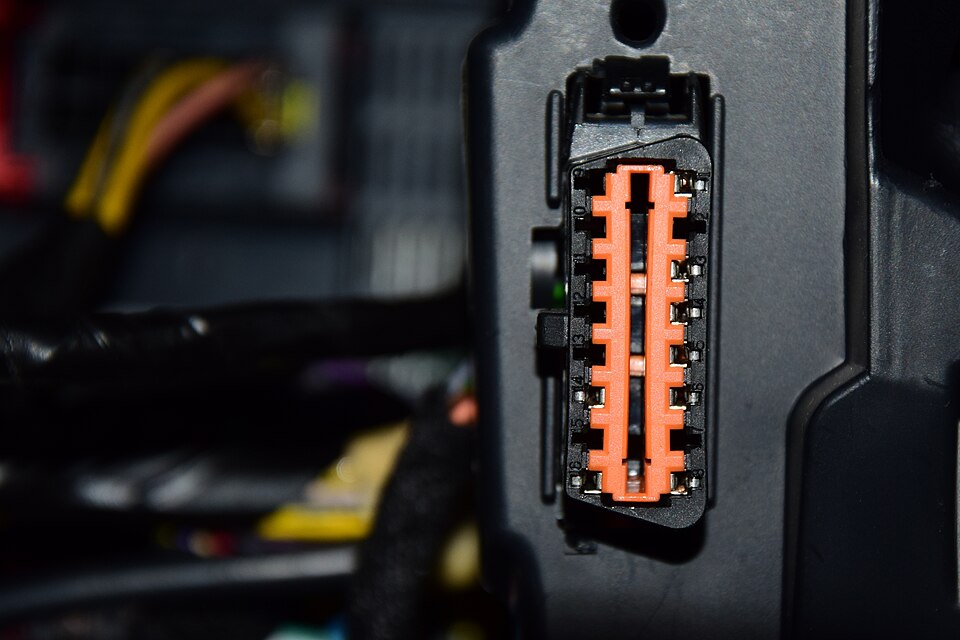
Recognising the socket. Colour and orientation may differ. Use your manual and the orientation diagram to locate it in your car, not its position in this photo.0x010C / Wikimedia Commons · CC BY-SA 4.0 · Resized, not retouched
With the vehicle stationary, locate its diagnostic socket using the vehicle handbook and connect a compatible adapter. Follow the manufacturer’s instructions for power and ignition position. For Bluetooth Classic, pair the adapter when required and select that same device in the app. For Wi-Fi, join the adapter’s network and use its documented address and port.
Start the connection in SC OBD2 and read the resulting status. If Android connects but the control unit does not respond, check the vehicle-side conditions instead of repeatedly pairing the phone. Once connected, inspect an available parameter and its unit. Do not expect every parameter to be supported or to change continuously. BLE and USB adapters are not supported by this version.
Android reports “no Internet”
An adapter’s Wi-Fi network can carry local OBD traffic without providing Internet. This warning is different from an OBD communication failure.
Another app is connected
Another OBD app may occupy the adapter. Close its connection before trying SC OBD2. Do not interrupt a device being used while driving.
Instructions and screenshotsRecognising the socket. Colour and orientation may differ. Use your manual and the orientation diagram to locate it in your car, not its position in this photo.0x010C / Wikimedia Commons · CC BY-SA 4.0 · Resized, not retouched
Real app screenshots captured on a test bench. Some earlier views may show previous labels; the explanations use the current names.
Choose a compatible OBD2 adapter
A suitable adapter is the starting point for using an OBD2 scanner on Android. The app interprets and presents information, but it cannot communicate with the car’s socket without compatible hardware. Before buying, check what your actual setup needs rather than treating a product name or attractive price as a promise of access to every vehicle parameter.
The adapter sits between your car’s diagnostic socket and your Android phone. It must support the vehicle’s communication protocol and a transport that the app can use. For this version, choose Bluetooth Classic/SPP or Wi-Fi TCP/IP. A product described only as Bluetooth may use BLE instead, so check the exact model rather than relying on the brand or ELM327 wording.
Use the vehicle handbook and adapter documentation to confirm the connection and power requirements. Compatibility also depends on which data the control units expose: buying a Full licence cannot add unsupported sensors. Try the connection and available basic readings with the Free version before deciding whether the additional software features suit you. Do not assume that a test of one adapter revision covers every variant.
For example, two products from the same brand may use different connections. One may provide Bluetooth Classic, another BLE and another USB. Your phone supporting those connections does not mean the same app version supports them all. Likewise, communication with one control unit does not establish access to every system in the car: ABS and airbags should not be assumed to be included.
The diagnostic socket’s location varies between vehicles. Use the handbook to locate and identify it, without removing trim or forcing a connector. Also follow the instructions for leaving the adapter connected or removing it after a session: power supply, parked-vehicle consumption and indicator lights do not have universal meanings. The car does not need its own Internet connection to provide local OBD data.
Once you have chosen an adapter, follow the first-connection guide and see which parameters actually arrive. Testing your own setup helps you decide how monitoring and history can be useful. If you already own an adapter, note its full model and transport before requesting help. Those details are more useful than a generic “ELM327 Bluetooth” description and do not require sharing a VIN, registration number or location.
Do older cars work?
Many compatible cars can provide useful diagnostic data without having their own Internet connection. Age or registration year alone does not establish compatibility.
Can I use BLE or USB?
Not with this version of SC OBD2. Do not choose an adapter for features mentioned in a future product roadmap.
Instructions and screenshotsSTEP 2
Connect the adapter without forcing it.
VehicleOBD2 socket and control-unit readings
AdapterPowered and compatible
PhoneSupported Bluetooth or adapter Wi-Fi
Smart Control OBD2Start session and check readings
Check OBD2/EOBD support and compatibility between adapter, transport and app version. Insert the connector in its correct orientation. Follow vehicle and adapter instructions for ignition, power and leaving it plugged in: indicator colours have no universal meaning.
Do not run the engine in an enclosed space to obtain readings. Do not drive with cables or devices interfering with the controls.
The adapter sits between your car’s diagnostic socket and your Android phone. It must support the vehicle’s communication protocol and a transport that the app can use. For this version, choose Bluetooth Classic/SPP or Wi-Fi TCP/IP. A product described only as Bluetooth may use BLE instead, so check the exact model rather than relying on the brand or ELM327 wording.
Use the vehicle handbook and adapter documentation to confirm the connection and power requirements. Compatibility also depends on which data the control units expose: buying a Full licence cannot add unsupported sensors. Try the connection and available basic readings with the Free version before deciding whether the additional software features suit you. Do not assume that a test of one adapter revision covers every variant.
Do older cars work?
Many compatible cars can provide useful diagnostic data without having their own Internet connection. Age or registration year alone does not establish compatibility.
Can I use BLE or USB?
Not with this version of SC OBD2. Do not choose an adapter for features mentioned in a future product roadmap.
STEP 3
Choose one of the two Legacy connections.
Bluetooth Classic / SPP
Pair the phone, then select the adapter in the app.
Enable Android Bluetooth and make the adapter discoverable according to its manufacturer. Use any pairing button as instructed for that model.
Open Android Bluetooth settings, identify the correct device name and complete pairing when required. If a PIN is needed, use the manufacturer-documented PIN; there is no universal PIN.
Open SC OBD2 connection settings, choose Classic Bluetooth and select that paired adapter. Grant the necessary Android permissions when requested.
Start the connection from the app. “Paired” in Android only means the phone and adapter recognise each other; it does not certify vehicle communication.
Wi-Fi / TCP-IP
Join the network, then configure address and port.
In Android Wi-Fi settings, choose your adapter’s network and use its manufacturer-specified password if required. Do not substitute your home network.
In SC OBD2, choose Wi-Fi/TCP and enter the adapter address and port from its documentation. Do not copy values shown for a different model.
If Android reports “no Internet”, distinguish that warning from local communication: an adapter can provide its OBD network without Internet access. Follow the phone instructions to remain on the selected network.
Start the app connection and check its status. Being on the right network does not mean the control unit has responded yet.
These are operating steps, not copies of every phone’s menus. Android labels vary by version and manufacturer. This guide does not include BLE or USB setup for Legacy.
STEP 4
Start the session in Smart Control OBD2.
Open the app and check the connection type and selected adapter.
Use the connection control provided by your version and read the resulting app status.
Distinguish phone–adapter connection from control-unit communication: the second stage can fail after correct Android pairing.
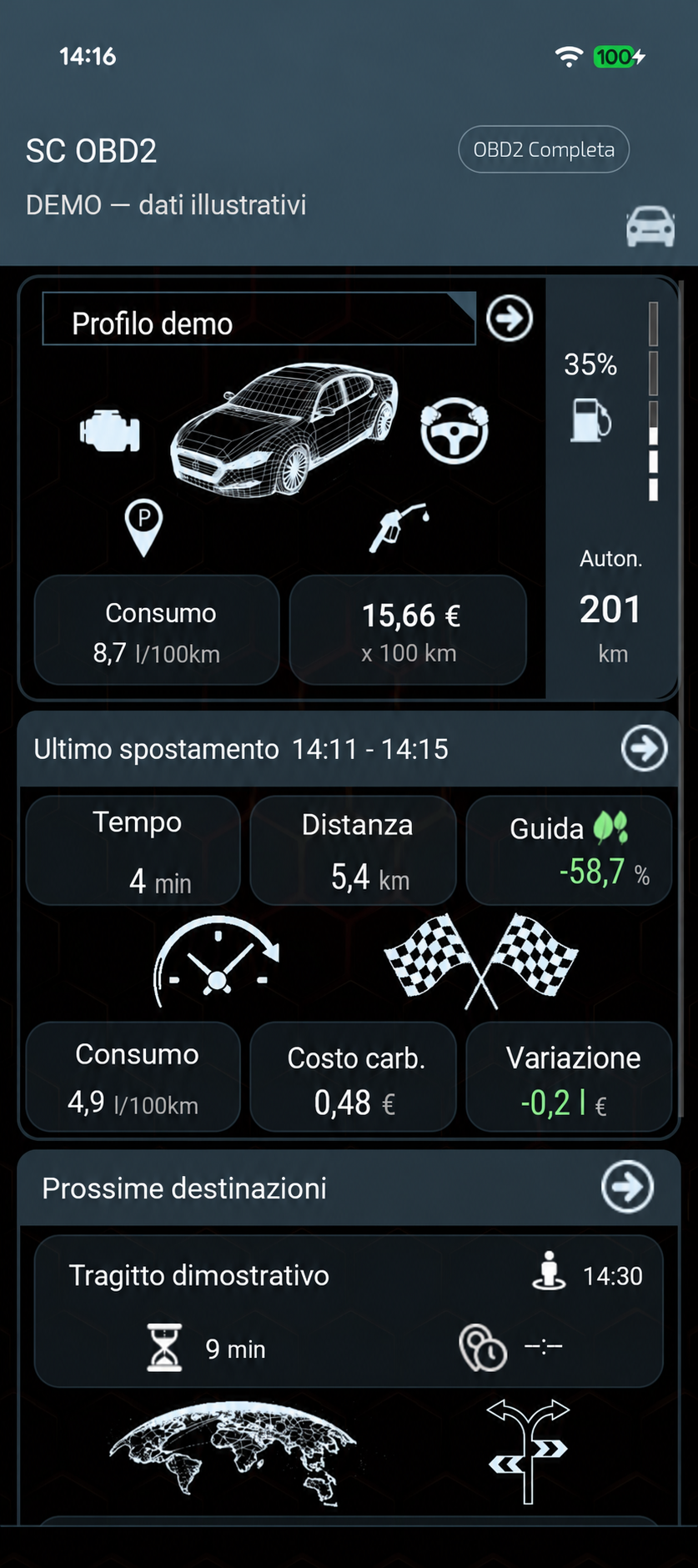
The adjacent Home view helps orient you in the summary, not document every button in every release. The illustrated view shows an already ended session.
The summary may remain after disconnection. Existing history does not prove OBD communication is active now.
Retouched demo illustration. Not a real trip or evidence of a current connection.
A parameter is unavailable
An unavailable reading is not a measured zero
If a field has no value, check whether the connection is active and other readings are arriving. A calculation may be missing an input; an OBD parameter may be unsupported or may require a particular reading condition. A blank field alone does not establish that a sensor has failed.
The useful outcome is knowing which readings are available, their units and the situation in which they were obtained. For support, give the parameter name and what the screen shows. When looking for a change over time, use records that were actually saved and whose conditions you can put in context.
Check whether other supported parameters have valid readings and whether the OBD session is still active. If they do, the missing entry may simply not be exposed by the vehicle or may require conditions that are not present. A parameter appearing in the list is not a promise that every car can return it.
Some entries are calculated values or come from the phone rather than the control unit. They need their own inputs or permissions. A vehicle profile does not add unsupported sensors, and a Full licence does not change the control unit’s capabilities. Keep the parameter name, unit and observed status when asking for help; avoid presenting an empty field as a measured zero or confirmed fault.
For example, a car may provide engine speed and temperature but no fuel-flow reading. The first two readings establish only their own availability; they do not make the third parameter mandatory. Choose data actually provided and use estimates only when their inputs are present, rather than filling gaps to make a screen look complete.
Can a profile fix it?
Only where that particular calculation requires profile information. Direct readings still depend on what the vehicle provides.
Can the Complete licence fix it?
It can enable eligible software features or parameter selections, but cannot make the car expose a sensor it does not support.
Instructions and screenshotsSTEP 5
Check the first readings and their units.
Open Dashboard or Live Data and observe an available parameter. The selector may list items your control unit does not support. Read number, unit and trend together; dashes and empty fields are not zero.
Choose what to display
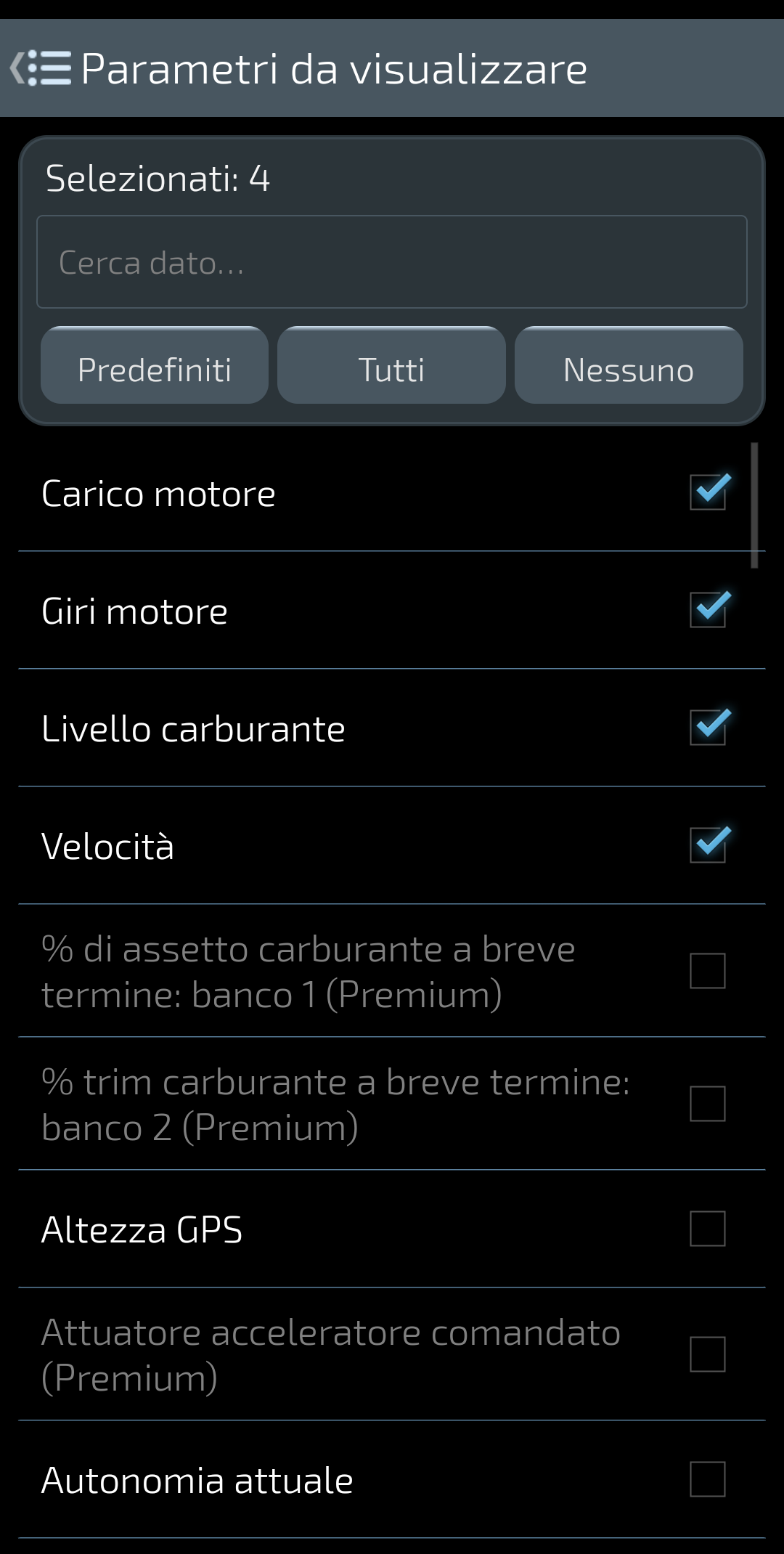
Select useful parameters for a readable view. A listed name does not guarantee a reading from your vehicle.
October 2026 test capture, Italian interface. Availability and interface may differ.
Read value and trend
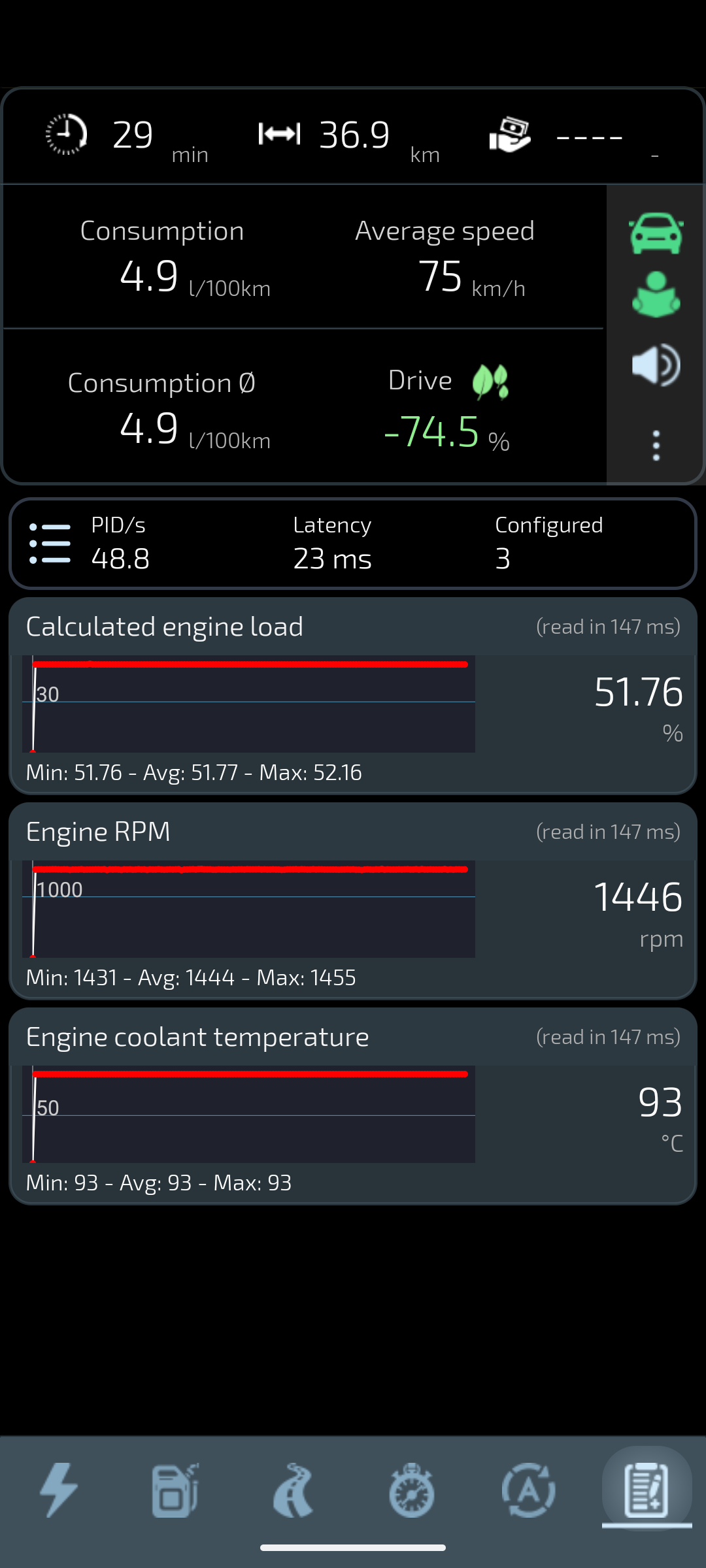
1446 rpm is the bench sample. Minimum, average and maximum summarise the displayed window, not the trip or engine health.
Original capture with demonstration bench OBD data, not a road test.
Check whether other supported parameters have valid readings and whether the OBD session is still active. If they do, the missing entry may simply not be exposed by the vehicle or may require conditions that are not present. A parameter appearing in the list is not a promise that every car can return it.
Some entries are calculated values or come from the phone rather than the control unit. They need their own inputs or permissions. A vehicle profile does not add unsupported sensors, and a Full licence does not change the control unit’s capabilities. Keep the parameter name, unit and observed status when asking for help; avoid presenting an empty field as a measured zero or confirmed fault.
Can a profile fix it?
Only where that particular calculation requires profile information. Direct readings still depend on what the vehicle provides.
Can the Complete licence fix it?
It can enable eligible software features or parameter selections, but cannot make the car expose a sensor it does not support.
Instructions and screenshotsChoose what to display
Select useful parameters for a readable view. A listed name does not guarantee a reading from your vehicle.
October 2026 test capture, Italian interface. Availability and interface may differ.
Read value and trend
1446 rpm is the bench sample. Minimum, average and maximum summarise the displayed window, not the trip or engine health.
Original capture with demonstration bench OBD data, not a road test.
Real app screenshots captured on a test bench. Some earlier views may show previous labels; the explanations use the current names.
When is the connection actually ready?
1 · Phone and adapter
Android is paired with the Bluetooth device or connected to its Wi-Fi network. The transport is prepared; this is not yet evidence of an OBD session.
2 · App session
SC OBD2 starts the connection and displays its status. If the control unit does not respond, check ignition, power, settings and compatibility; do not only repeat pairing.
3 · Available parameters
A data view displays readings available for the configuration. Some parameters may be absent or static depending on vehicle conditions; not all are guaranteed to be supported.
These are explanatory stages, not app messages reproduced word for word. Always read the actual message displayed by your version.
Find which part of the connection failed
If the adapter is missing, check its power, supported connection type and Android permissions. Confirm the selected Bluetooth device or Wi-Fi network and check whether another app is using it. If the phone connects but SC OBD2 receives no vehicle response, follow the vehicle and adapter instructions for ignition and check protocol compatibility.
If the session drops, note when it happens and the status shown by the app. Check adapter power and the selected connection before changing other settings. A retained trip summary or an old number is not proof of an active data stream. For support, provide the app and Android versions, exact adapter model, transport and error message; omit passwords, pairing PINs and vehicle identifiers.
For example, when Android connects but no control-unit readings arrive, a screenshot of Bluetooth settings alone does not describe the whole problem. Also note the app’s message and the stage at which it appears. Keep the configuration understandable, then use the support route with only the necessary technical details.
Some readings are present
A partly populated view may reflect the vehicle’s supported parameters. Distinguish a missing parameter from a lost connection before treating either as a fault.
The adapter’s network has no Internet
That can be normal for local Wi-Fi OBD communication. Use the adapter’s documented connection details, not those of your home network.
Instructions and screenshots
If readings do not arrive, separate the checks.
The phone cannot find the adapter
Check power, transport, Android permissions and selected device or network. Consult the manufacturer for PIN and network settings. Check whether another app is using the adapter.
Paired, but no control-unit response
Check ignition according to vehicle instructions, OBD2/EOBD support and app status. Do not change protocols or advanced options blindly. Record the exact message for support.
Some readings are present, others are missing
Control units do not all expose the same parameters; some depend on conditions and configuration. A missing reading is neither zero nor a diagnosis.
The session disconnects
Check power and connection. Review relevant Android power settings without indiscriminately disabling protections. Note when it occurs and the app status.
If the adapter is missing, check its power, supported connection type and Android permissions. Confirm the selected Bluetooth device or Wi-Fi network and check whether another app is using it. If the phone connects but SC OBD2 receives no vehicle response, follow the vehicle and adapter instructions for ignition and check protocol compatibility.
If the session drops, note when it happens and the status shown by the app. Check adapter power and the selected connection before changing other settings. A retained trip summary or an old number is not proof of an active data stream. For support, provide the app and Android versions, exact adapter model, transport and error message; omit passwords, pairing PINs and vehicle identifiers.
Some readings are present
A partly populated view may reflect the vehicle’s supported parameters. Distinguish a missing parameter from a lost connection before treating either as a fault.
The adapter’s network has no Internet
That can be normal for local Wi-Fi OBD communication. Use the adapter’s documented connection details, not those of your home network.
Configure a profile for the data you want to keep
A profile gives data a context; it is not what grants the app permission to read the car. It is useful when you want new sessions to belong to the correct vehicle or need to configure calculations that depend on its characteristics. Keeping those purposes separate lets you begin without filling every field immediately and add the relevant information when you decide what to retain or estimate.
Create and select a vehicle profile when you want to associate new trips, saved measurements or diagnostics with that vehicle. Enter the fields required by the current form accurately rather than using invented values. Configuration supports the calculations that use it; it does not add sensors or make every reading more accurate.
Keep vehicle and driver profiles distinct. For sensor samples, both must be active alongside a valid trip and the relevant recording conditions. Fuel type and calibration, tank capacity, vehicle mass and recorded fuel prices serve different estimates. Supply them where the function requires them, and treat unavailable results as unavailable. Supported direct readings remain usable without a profile. Earlier temporary readings are not recovered when you add one later.
For example, tank capacity may be needed for range, but without a reliable fuel level and usable consumption information the estimate can still be unavailable. Fuel price is needed for costs and comes from recorded refuelling information; a profile’s existence does not supply it. Mass, fuel type and calibration support particular calculations. None of these inputs automatically makes sensors available when the control unit does not expose them.
Before a session you want to record, check the active vehicle and the required driver profile. This is more useful than adding a name after the journey: temporary data is not attached retrospectively. Recording retains data that is eligible and valid in the session, not every entry appearing in the parameter list. A check mark or a preview reading therefore does not establish that a historical sample exists.
Profile settings are held on the device and do not constitute an SCA account. Preserve copies through the available backup routes and inspect files before sharing them. When requesting support, describe the relevant configuration without sending unnecessary personal information. If your immediate purpose is to read a supported sensor or code, you can return to diagnostics or monitoring without creating new history.
Which profile is needed for recording?
The vehicle profile identifies the car; the driver profile is a separate part of the sensor-recording context. Check both before beginning a session you want to retain.
What happens without a profile?
Live OBD readings remain available when supported. New driving history is not created, but settings and parameter selections may still be retained.
Instructions and screenshots
Profiles, memory and export.
In Stopwatch, without a real profile measurements remain in RAM and do not create history. With a profile, saving follows app functions; retroactive recovery is not guaranteed.
Where a view provides CSV data export, you can take that data outside the app. Not all parameters are exportable. Files are separate copies: inspect them before sharing and delete them from their destination when no longer needed.
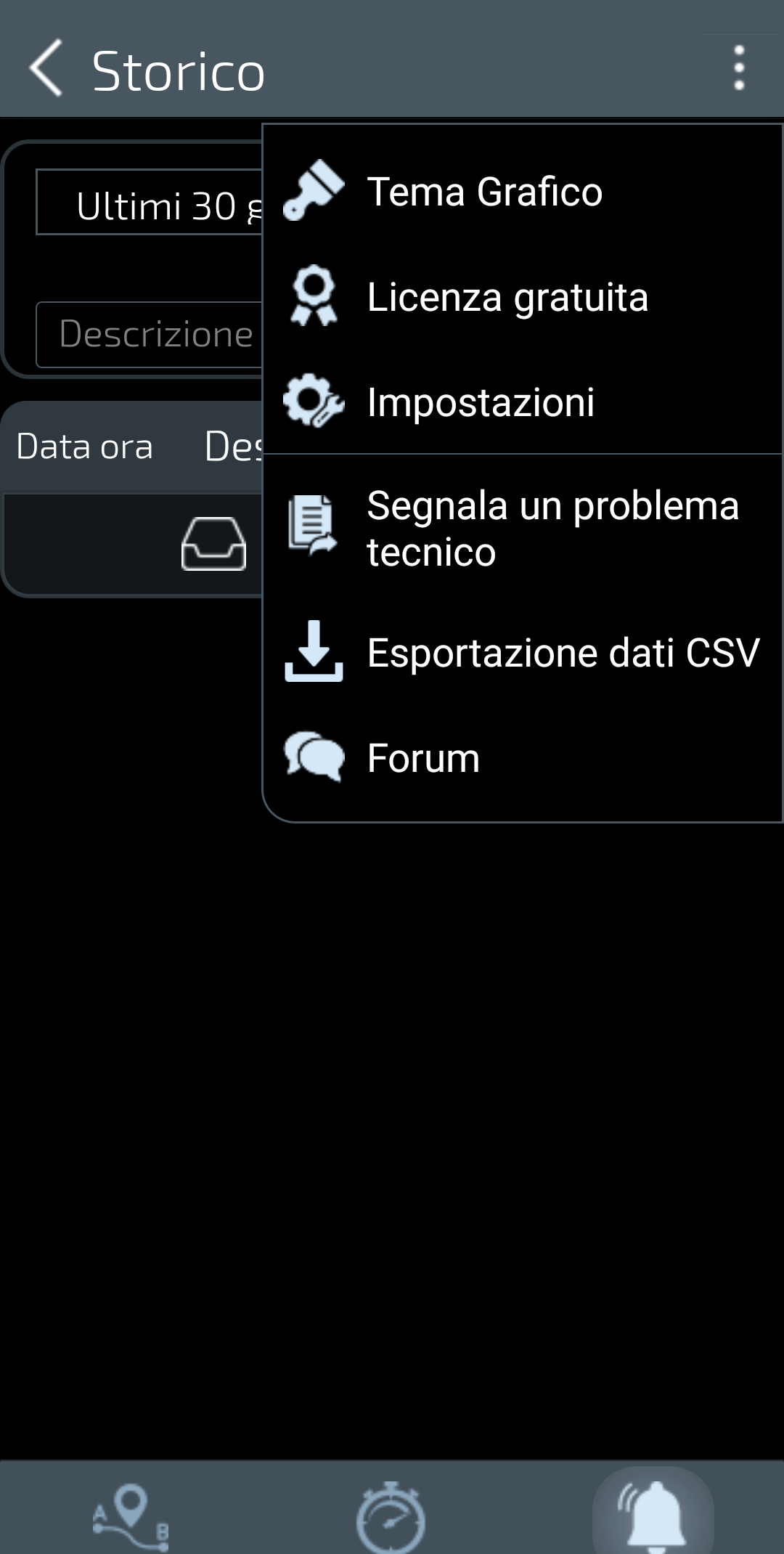
The menu shows “Esportazione dati CSV”. Check availability in the view and version you use.
October 2026 test capture, Italian interface. Documents the command, not a successful export; the distributed version may differ.
Create and select a vehicle profile when you want to associate new trips, saved measurements or diagnostics with that vehicle. Enter the fields required by the current form accurately rather than using invented values. Configuration supports the calculations that use it; it does not add sensors or make every reading more accurate.
Keep vehicle and driver profiles distinct. For sensor samples, both must be active alongside a valid trip and the relevant recording conditions. Fuel type and calibration, tank capacity, vehicle mass and recorded fuel prices serve different estimates. Supply them where the function requires them, and treat unavailable results as unavailable. Supported direct readings remain usable without a profile. Earlier temporary readings are not recovered when you add one later.
Which profile is needed for recording?
The vehicle profile identifies the car; the driver profile is a separate part of the sensor-recording context. Check both before beginning a session you want to retain.
What happens without a profile?
Live OBD readings remain available when supported. New driving history is not created, but settings and parameter selections may still be retained.
Instructions and screenshotsThe CSV control in history
The menu shows “Esportazione dati CSV”. Check availability in the view and version you use.
October 2026 test capture, Italian interface. Documents the command, not a successful export; the distributed version may differ.
Real app screenshots captured on a test bench. Some earlier views may show previous labels; the explanations use the current names.
After testing: disconnect and keep only what you need.
Use the app disconnect control and check the status before leaving. Follow vehicle and manufacturer instructions on leaving or removing the adapter. For help, provide app and Android versions, exact adapter model, Classic or Wi-Fi transport and observed message. Do not send VINs, number plates, coordinates, PINs or passwords.
Keep the exact code and any status shown, the symptoms, and the circumstances in which they appeared. If live readings are available, note their names, values and units. Missing information is not zero and a reading does not by itself confirm a cause.
Smart Control OBD2 reads available codes and parameters through a compatible adapter. It helps you observe and retain context; it does not automatically identify the cause of a fault. Coverage depends on the vehicle, control unit and adapter.
After your first connection, a long list of numbers may not tell you much. Start with a simple question: what do you want to observe, and under which conditions? Following a few readings you understand makes it easier to see what your car actually provides.
Read the value, unit and source together
Where supported, engine speed, coolant temperature and engine load can help describe a situation. Their meaning depends on what the vehicle was doing. An isolated reading does not certify normal operation or prove a fault, and there is no universal threshold in this guide for every engine.
Keep the sources distinct. An OBD parameter comes through a control unit; a phone reading, such as an available GPS measurement, follows a different path; a calculated value depends on its inputs and settings. These are not interchangeable measurements. Units, whether the reading is current, and the surrounding conditions matter as much as the number.
A fault code describes a detected condition; engine data helps you observe the context in which the car is operating. Sensor monitoring lets you choose parameters and follow their trends without constantly switching between screens. The benefit is not to fill a page with numbers, but to recognise a few useful readings and learn how they behave under conditions you understand.
Sensor monitoring brings available readings together so you can observe how values change during a session. A PID identifies a diagnostic parameter; it is not necessarily a separate physical sensor. The list may also contain phone data, such as GPS altitude, and values calculated by the app. Their sources and requirements are different.
Use the list control to choose the parameters you want to follow. Start with a few meaningful values and read their units and trends. Supported direct OBD readings remain available without a vehicle profile. To retain samples with a trip, activate vehicle and driver profiles and use a valid session with recording configured. Only data acquired and eligible for saving is retained; creating a profile later cannot reconstruct previous readings.
For example, begin with available engine-speed and temperature readings, adding engine load when the control unit provides it. The name and unit explain what you are observing; minimum and maximum summarise the displayed sample rather than replacing its context. If a value stays steady, consider the operating conditions. If it is missing, do not turn the blank field into a zero or evidence of a fault.
Parameters to monitor lets you search, choose and reorder data. List previews are temporary readings: they can help you recognise a value before selecting it, without recording it automatically. A richly populated list is therefore different from a session saving all of those samples. Some parameters require Complete, but no licence can add data the vehicle does not support.
If you want to revisit the data later, check profiles and session recording first. Observing how your car works today can create a useful reference for the future, even if it is recent and showing no symptoms. Comparing that information is not an automatic diagnosis. Configure the list while parked and use saved history to investigate further without being distracted while driving.
Parameters to monitor
Open the list control from Sensor monitoring. Search for a parameter by name and inspect its unit and available reading before selecting it. The list contains parameters handled by the app, not a guarantee that your vehicle supports every entry. Basic parameters can be selected in the Free version; other selections depend on your recognised licence.
The preview reads visible parameters temporarily while this page is active. It helps you understand a parameter without automatically adding it to continuous monitoring or trip history. Select the parameters you want, use the ordering controls to move selected entries and confirm the order. Return to Sensor monitoring to check the resulting view. Changing the order does not change which data the vehicle can provide.
How do I change the order?
Use the striped handle for a selected parameter, move it to the desired position with the displayed controls and confirm with OK. Keep configuration changes for when the vehicle is stationary.
Does a check mark mean it is saved?
No. Selection, live acquisition and recording are distinct. Sensor history also depends on the active profiles, valid trip and recording rules.
Open the list
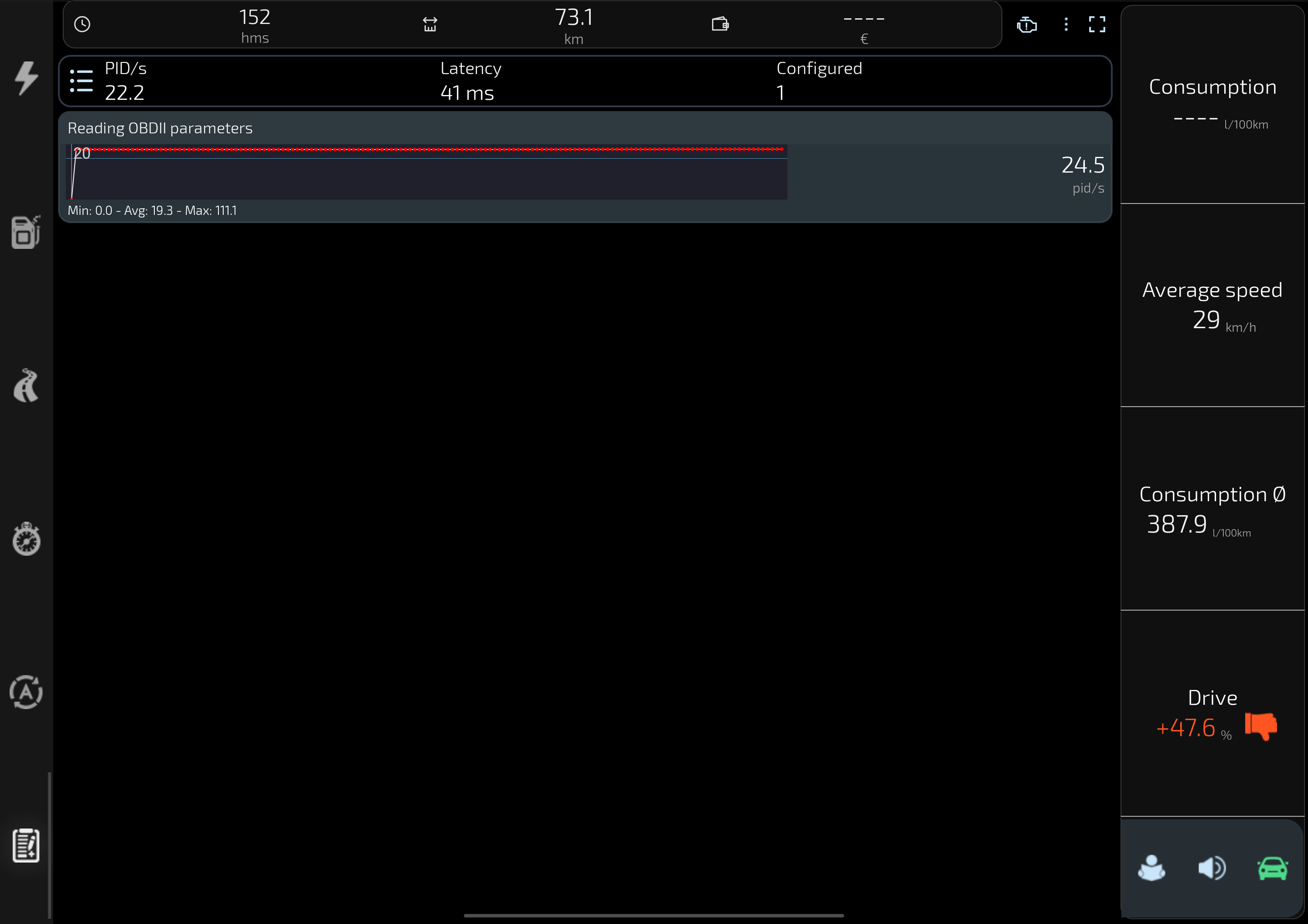
Tap the icon with three lines and three dots in the statistics bar. The parameter selection page lets you browse and choose the data to monitor.
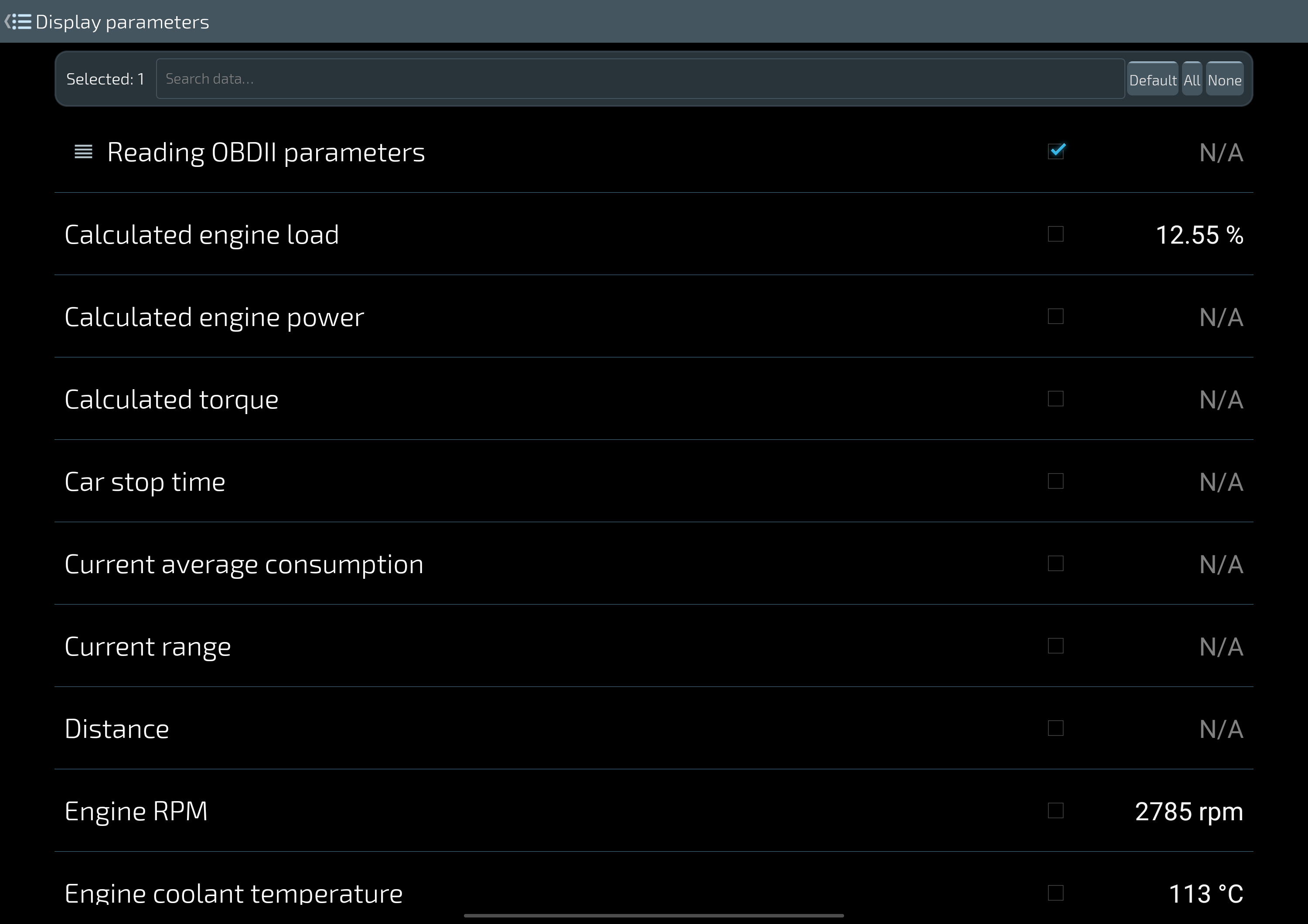
Choose parameters
Use the search field to find a parameter. A tick marks your selection; the value beside it is a reading, not proof that recording is active. The Defaults, All and None controls help manage your selection, subject to availability and licence limits.
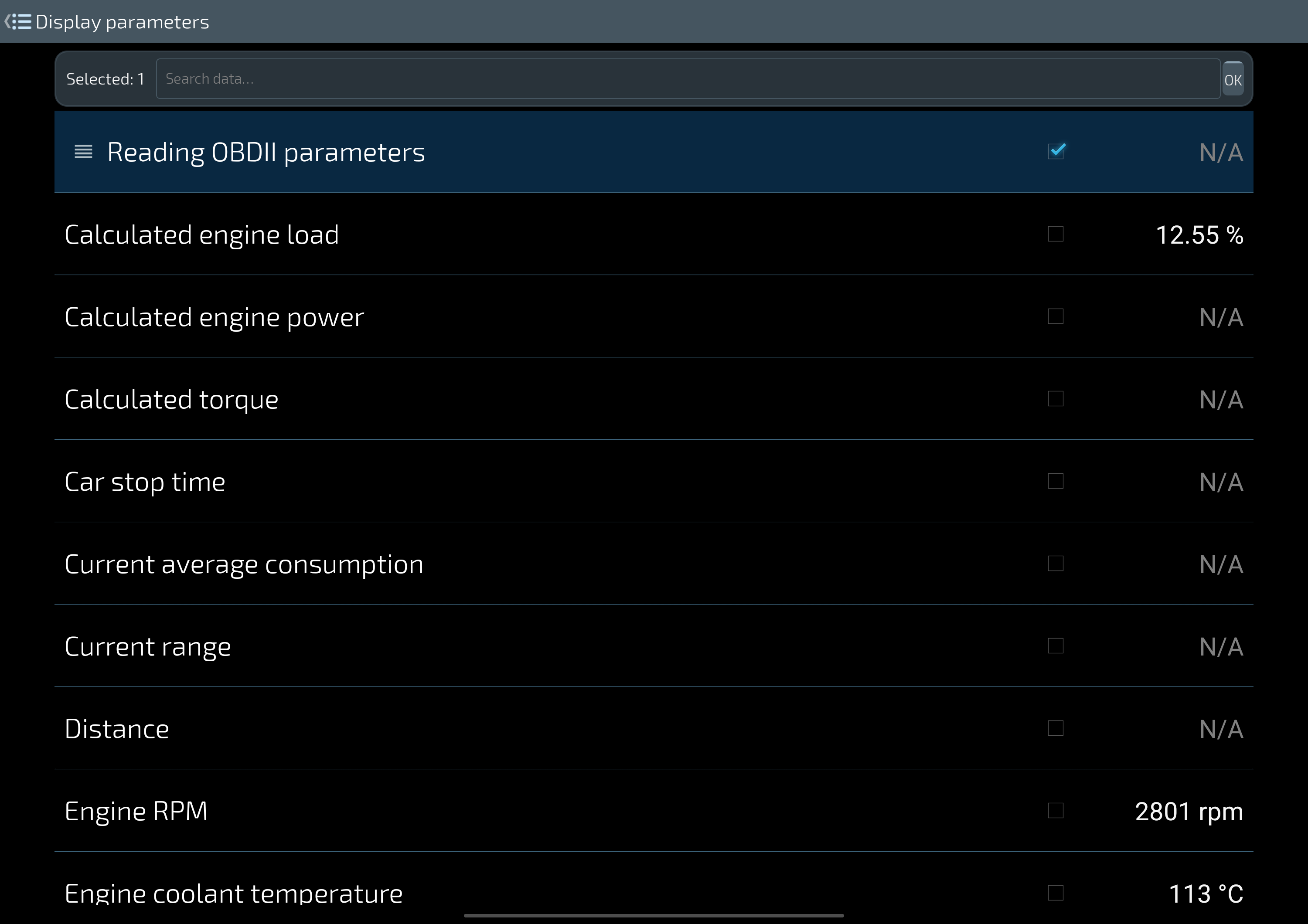
Change the order
Tap the striped handle to the left of a selected parameter, move it to the desired position and confirm with OK. Reordering applies to active parameters; it does not change what the ECU makes available.
What do minimum and maximum mean?
Read them in the context of the displayed sample or period. They do not automatically describe the whole trip or establish the health of the engine.
Why is a value missing?
The car may not expose the parameter, its operating conditions may not apply, or a valid reading may not yet be available. Missing data is not zero.
1. Monitoring: the List icon is below the trip summary, to the left of PID/s and latency.2. Parameter list: search, select a parameter and use the handle on the left to arrange active parameters.Reordering mode: selected row and OK button. Actual capture from a test bench.
Real app screenshots captured on a test bench. Some earlier views may show previous labels; the explanations use the current names.
Sensor monitoring brings available readings together so you can observe how values change during a session. A PID identifies a diagnostic parameter; it is not necessarily a separate physical sensor. The list may also contain phone data, such as GPS altitude, and values calculated by the app. Their sources and requirements are different.
Use the list control to choose the parameters you want to follow. Start with a few meaningful values and read their units and trends. Supported direct OBD readings remain available without a vehicle profile. To retain samples with a trip, activate vehicle and driver profiles and use a valid session with recording configured. Only data acquired and eligible for saving is retained; creating a profile later cannot reconstruct previous readings.
What do minimum and maximum mean?
Read them in the context of the displayed sample or period. They do not automatically describe the whole trip or establish the health of the engine.
Why is a value missing?
The car may not expose the parameter, its operating conditions may not apply, or a valid reading may not yet be available. Missing data is not zero.
Parameters to monitor
Use this list to find parameters, see available preview readings and choose what appears in Sensor monitoring. The check mark represents selection; a preview value does not mean the parameter is being recorded. You can reorder selected parameters using the controls shown. Availability depends on the car and adapter, and some selections require OBD2 Complete.
Instructions and screenshots1. Monitoring: the List icon is below the trip summary, to the left of PID/s and latency.2. Parameter list: search, select a parameter and use the handle on the left to arrange active parameters.
Real app screenshots captured on a test bench. Some earlier views may show previous labels; the explanations use the current names.
Keep a useful history of your car
A change in fuel use gives you a reason to look more closely; it is not a diagnosis. History helps you revisit the available trips and the conditions in which the car was used. You can turn an impression into a comparison you can describe without automatically blaming a fault or driving style.
Choose periods that can meaningfully be compared
Select the vehicle and period, then look at the records actually available. Distance, duration, how often you made a trip and known driving conditions help explain what the two periods represent. A week of short trips and queues is not the same use as one longer journey in flowing traffic.
For example, if the displayed fuel use appears higher, first check that the units, profile and time range have not changed. Then consider which trips make up the total and whether the required data was available. Even under similar conditions, a difference does not identify its cause. It can be a useful observation to discuss, rather than a verdict on the engine.
A reading from today becomes more useful when you can compare it with information recorded earlier. Smart Control’s history brings sessions and summaries together so you can revisit how the car was used, the available results and the relevant period. You do not have to wait for a fault: recording while the car is running normally creates a reference that memory alone cannot reconstruct months later.
Use History to return to trips, measurements and other data that were actually saved. Choose the relevant vehicle and period, then compare like with like: a week of short urban trips is a different context from a longer journey. The figures can help you describe a change more clearly, but do not identify its cause on their own.
For new sensor history, check active vehicle and driver profiles, a valid trip and the recording settings before the session. Without a vehicle profile you can still read supported live OBD data, but do not create new permanent driving history. OBD2 Complete removes the applicable Free history limits and enables CSV export in supported views. Previously saved records remain distinct from today’s connection status.
Before comparing totals, check the number of included trips and the units. A greater distance or different cost may reflect another date range, missing sessions or the prices entered. A month of short local journeys, for example, is not directly comparable with a motorway holiday. History makes the context available; it does not remove differences in use or establish a mechanical cause.
Previously saved local data remains accessible without being retrieved from a server. This makes history useful without Internet, but also makes preserving it important: deleting app data, losing the device and sharing an export are separate actions from simply viewing a record. Backup and restore manage copies of existing information. CSV export, where supported and enabled by the licence, lets you inspect data in other tools.
Complete is useful when you want to continue building that reference over time, beyond the Free version’s limits and with supported exports. It does not change the sensors your car provides or recover information never recorded. Check configuration and profiles before the next session, then confirm that the expected record appears afterwards. Your archive can then grow through actual records and comparisons you can understand.
History is empty
Check the active vehicle and period filter, then whether a valid session was actually recorded. Creating a profile does not recover earlier temporary readings.
Can I keep a separate copy?
Use the available backup or supported CSV export functions for data already saved. An exported file is a separate copy that you control and should check before sharing.
Use History to return to trips, measurements and other data that were actually saved. Choose the relevant vehicle and period, then compare like with like: a week of short urban trips is a different context from a longer journey. The figures can help you describe a change more clearly, but do not identify its cause on their own.
For new sensor history, check active vehicle and driver profiles, a valid trip and the recording settings before the session. Without a vehicle profile you can still read supported live OBD data, but do not create new permanent driving history. OBD2 Complete removes the applicable Free history limits and enables CSV export in supported views. Previously saved records remain distinct from today’s connection status.
History is empty
Check the active vehicle and period filter, then whether a valid session was actually recorded. Creating a profile does not recover earlier temporary readings.
Can I keep a separate copy?
Use the available backup or supported CSV export functions for data already saved. An exported file is a separate copy that you control and should check before sharing.
Why is history empty?
Keep your records and check what is missing
If history is empty, check the profile, date range and filters first. A live screen can show information without it being available in the selected history. Do not reinstall the app or clear its data in an attempt to recover an empty view.
The local archive stays on your device, and you can consult the records it holds without uploading them to an online service. You also need to protect that archive: before changing phones or working on stored data, verify the backup and follow the instructions for your installed version. Purchases, web support and online content have their own requirements; local storage does not mean every app function is offline.
Check the selected vehicle and time period first. The view only includes records that match its filters, so an empty result does not necessarily mean that every saved record has disappeared. Next, consider whether the previous session was actually recorded. Seeing live data or selecting a parameter is not proof that it was saved.
For new sensor samples, the app needs active vehicle and driver profiles, a valid trip and data eligible for recording. Check that setup while stationary before the next session. Do not delete data or reinstall the app to solve an unexplained empty view. Backup and CSV work with information already saved; they cannot recreate readings that only existed temporarily.
When building a useful reference, checking the expected record after the first session is more informative than assuming that every displayed value was stored. Review the record and its context, then preserve copies using the available tools. You do not need to make new journeys merely to understand a filter or selection.
Can I recover an earlier live session?
Not by creating a profile afterwards. Temporary results are not retrospectively attached to a new vehicle history.
What information helps support?
Describe the screen, selected vehicle and period, and what you expected to find. Avoid sending location history or a complete database unless specifically required through an appropriate support path.
Check the selected vehicle and time period first. The view only includes records that match its filters, so an empty result does not necessarily mean that every saved record has disappeared. Next, consider whether the previous session was actually recorded. Seeing live data or selecting a parameter is not proof that it was saved.
For new sensor samples, the app needs active vehicle and driver profiles, a valid trip and data eligible for recording. Check that setup while stationary before the next session. Do not delete data or reinstall the app to solve an unexplained empty view. Backup and CSV work with information already saved; they cannot recreate readings that only existed temporarily.
Can I recover an earlier live session?
Not by creating a profile afterwards. Temporary results are not retrospectively attached to a new vehicle history.
What information helps support?
Describe the screen, selected vehicle and period, and what you expected to find. Avoid sending location history or a complete database unless specifically required through an appropriate support path.
Understand fuel consumption and estimates
Separate readings from estimates
SC OBD2 presents available fuel-use data and results it can calculate from the inputs and settings provided. Instantaneous fuel use and a trip average answer different questions, and meaningful comparisons need consistent units. They are not certified fuel measurements; vehicles do not all provide the same inputs.
Use only known, real information in vehicle profiles and refuelling records. If information is missing, leave the field unset where the screen allows it. A useful comparison depends on the recorded data and the conditions considered; it is not a certified measurement or a promise of fuel savings.
Full provides access to the supported reserved functions, including the CSV export offered by the app, so you can do more with the records you have. An export is only useful when it contains valid recorded data. The software licence is a one-time purchase: it does not include unlimited third-party services or create missing readings.
An apparent increase in fuel consumption is a question, not yet a diagnosis. Before looking for a cause, establish which figure you are reading: an amount of fuel, consumption relative to distance, an instantaneous value or a period summary. Smart Control presents the data and estimates available in your configuration so you can compare relevant observations without confusing measurements, calculations and missing information.
Check the displayed unit and period before comparing values. Consumption may be based on available vehicle signals or on a calculation that needs suitable inputs. A missing field is not zero. Direct fuel-flow and usable speed data can support a reading without a vehicle profile on some cars; this is not available on every vehicle.
Other estimates depend on the configuration: fuel type and calibration affect relevant consumption calculations, range needs tank capacity, a reliable level and usable consumption data, and costs need a recorded fuel price. A newly created profile may not yet have enough information. Use recorded trips to compare similar use patterns, while allowing for traffic, route and operating conditions. The app does not guarantee a reduction in fuel use.
For example, litres per hundred kilometres and kilometres per litre are inverse measures: a larger number does not mean the same thing in both units. An instantaneous value also does not describe the cost of an entire journey. Read the view alongside its period, distance and available amount, rather than treating rounding or incomplete input as a result accurate to the last decimal.
Revisiting recorded trips helps separate a change in use from an isolated figure. Short routes, traffic, load and environmental conditions can change the comparison; every difference need not be attributed to a fault. No reduction in fuel use is promised. The practical benefit is information that helps you assess your observations and explain to a professional what you have noticed.
Start with data your car actually provides, configure only the required inputs and retain comparable sessions. If an estimate is missing, check its requirements rather than entering invented values. For comparison outside the app, use supported CSV exports when enabled by your licence. Check copies and any location information they contain before sharing: a useful public example should not reveal your journeys.
Why does range not appear?
A tank size alone is insufficient. The app also needs usable level and consumption information for the relevant estimate.
Why is cost missing or different?
Check the recorded fuel price, amount, period and rounding. A vehicle profile does not automatically supply the price of the fuel you bought.
Check the displayed unit and period before comparing values. Consumption may be based on available vehicle signals or on a calculation that needs suitable inputs. A missing field is not zero. Direct fuel-flow and usable speed data can support a reading without a vehicle profile on some cars; this is not available on every vehicle.
Other estimates depend on the configuration: fuel type and calibration affect relevant consumption calculations, range needs tank capacity, a reliable level and usable consumption data, and costs need a recorded fuel price. A newly created profile may not yet have enough information. Use recorded trips to compare similar use patterns, while allowing for traffic, route and operating conditions. The app does not guarantee a reduction in fuel use.
Why does range not appear?
A tank size alone is insufficient. The app also needs usable level and consumption information for the relevant estimate.
Why is cost missing or different?
Check the recorded fuel price, amount, period and rounding. A vehicle profile does not automatically supply the price of the fuel you bought.
Read performance figures in context
Performance can mean observing information made available by the engine or reviewing a measurement obtained with the app’s tools. To make a number useful, first identify where it came from. Smart Control lets you inspect supported information and revisit saved results, but it does not turn a phone into a dynamometer or guarantee that results produced by different methods are directly comparable.
Start by identifying the source of the figure. Some torque values are derived from ECU percentage and reference data, with power also depending on engine speed. Other estimates can use mass, acceleration or airflow. The required inputs are different: a profile is relevant to some calculations, but is not a universal condition for reading engine data.
In the Stopwatch, distinguish the current session result from a measurement saved in History. Without a real vehicle profile, results remain temporary and are not added retrospectively after a profile is created. Compare only measurements with a compatible method and context. An observed peak does not certify the manufacturer’s rated maximum or establish mechanical condition. Use results obtained safely; this guide does not require a driving test.
For example, power derived from ECU torque and engine speed has a different source from an estimate based on mass and acceleration. Entering vehicle weight can be necessary for a particular calculation without changing what the control unit reports. Consider the unit, source, period and inputs when reading a result; do not automatically compare an observed peak with the manufacturer’s maximum rated output.
History adds value to results actually recorded because it provides a reference you can revisit after the session. The Stopwatch can still operate temporarily without a real profile, but that mode creates no history and is not converted retrospectively. If you want to retain a measurement, prepare the context required by the app first and check the record afterwards rather than inferring a save from a number left on screen.
This guidance explains the tools; it does not call for road tests. Configure the app while parked and review measurements already available or obtained under appropriate conditions. A change may deserve investigation, but it does not automatically establish reduced performance or a fault. Choosing a licence extends the software features provided, not the certified accuracy of every figure or the performance of the vehicle.
Is power read or calculated?
Check the displayed function and its inputs. Even a value derived from ECU data is not equivalent to a controlled dynamometer measurement.
Will a profile save earlier results?
No. It provides context for subsequent recording where supported; it does not turn a temporary measurement into a past history entry.
Start by identifying the source of the figure. Some torque values are derived from ECU percentage and reference data, with power also depending on engine speed. Other estimates can use mass, acceleration or airflow. The required inputs are different: a profile is relevant to some calculations, but is not a universal condition for reading engine data.
In the Stopwatch, distinguish the current session result from a measurement saved in History. Without a real vehicle profile, results remain temporary and are not added retrospectively after a profile is created. Compare only measurements with a compatible method and context. An observed peak does not certify the manufacturer’s rated maximum or establish mechanical condition. Use results obtained safely; this guide does not require a driving test.
Is power read or calculated?
Check the displayed function and its inputs. Even a value derived from ECU data is not equivalent to a controlled dynamometer measurement.
Will a profile save earlier results?
No. It provides context for subsequent recording where supported; it does not turn a temporary measurement into a past history entry.
Change the settings that match your purpose
Start with the setting related to the problem you are solving. For connection, check Bluetooth Classic/SPP or Wi-Fi TCP/IP and the correct device or documented network details. For the data view, choose parameters and order in Parameters to monitor. For future history and calculations, check active profiles and the function’s required inputs.
Android permissions and the app’s preferences are distinct. Selecting a location option inside the app does not itself grant Android permission. Location is not the source of OBD engine readings, although some Android versions require location permission for Bluetooth discovery. Local OBD use and saved history do not require an SCA account; web help, Google Play and other online services have separate network requirements. Configure the app while stationary.
For example, granting background location does not make new engine sensors available; configuring a profile does not correct the wrong Bluetooth device being selected. Keeping the purpose of each setting clear reduces unnecessary changes. Use the relevant topic’s guidance to understand what a choice affects before applying it.
Can I change permissions later?
Yes, use the app and Android settings appropriate to the permission. Removing permission does not automatically delete records or exported files already created.
How do I stop a session?
Use the app’s disconnect command and check the resulting status. For leaving or removing the adapter, follow the vehicle and adapter instructions.
Start with the setting related to the problem you are solving. For connection, check Bluetooth Classic/SPP or Wi-Fi TCP/IP and the correct device or documented network details. For the data view, choose parameters and order in Parameters to monitor. For future history and calculations, check active profiles and the function’s required inputs.
Android permissions and the app’s preferences are distinct. Selecting a location option inside the app does not itself grant Android permission. Location is not the source of OBD engine readings, although some Android versions require location permission for Bluetooth discovery. Local OBD use and saved history do not require an SCA account; web help, Google Play and other online services have separate network requirements. Configure the app while stationary.
Can I change permissions later?
Yes, use the app and Android settings appropriate to the permission. Removing permission does not automatically delete records or exported files already created.
How do I stop a session?
Use the app’s disconnect command and check the resulting status. For leaving or removing the adapter, follow the vehicle and adapter instructions.
What OBD2 Complete adds
Complete makes sense when you want Smart Control to become an ongoing reference for your car. The value is more than a longer list of parameters: you can select eligible data relevant to your use, revisit sessions beyond the Free limits and inspect supported exports outside the app. Start with the compatibility of your own setup, then consider these capabilities in terms of what you will actually use.
OBD2 Complete adds software capabilities to the data your car already provides. It allows eligible additional parameter selections, history beyond the Free version’s limits and CSV export in supported views. It also permits supported DTC clearing with a recognised Full entitlement. Reading and clearing remain different operations; clearing does not repair a fault.
The licence is purchased once and has no periodic renewal. “Lifetime” describes the software entitlement, not perpetual compatibility or unlimited third-party services. It does not automatically include future SCA products, and buying it cannot add unsupported vehicle sensors. Check the price and terms shown by Google Play before confirming. If you already own a licence or a historical edition, check its recognised status and recovery guidance before purchasing again.
For example, you may want to follow an available parameter across later sessions and keep a CSV copy of the supported data. Or you may keep using history to distinguish different periods and conditions rather than relying on the latest observation. Profile and recording requirements still apply: a software licence does not automatically turn a temporary reading into a record or reconstruct journeys never saved.
The one-time model separates the software purchase from recurring charges. OBD2 Complete does not require a monthly or annual licence subscription. The actual price and terms are those shown by Google Play before purchase for your country and account; no potentially changing amount is fixed here. Remote services that are not operational should not be reasons to purchase as though they were already available.
If you come from PRO, Premium or a historical grant, begin with the status recognised in the app and the recovery guidance. Entitlements have different origins and are not recovered by deleting data or purchasing repeatedly. Local OBD readings remain separate from Google Play checks, which can require Internet. Before confirming a new purchase, establish whether the entitlement you already hold enables the functions you want.
I already paid
Use the appropriate Google Play account and inspect the licence status. Historical PRO, Premium and in-app purchases have different origins; do not delete old apps or data to try to recover a right.
Do I need to buy support?
A basic email support path remains available without purchase. Do not treat an inactive remote service as an immediately available benefit of buying Complete.
OBD2 Complete adds software capabilities to the data your car already provides. It allows eligible additional parameter selections, history beyond the Free version’s limits and CSV export in supported views. It also permits supported DTC clearing with a recognised Full entitlement. Reading and clearing remain different operations; clearing does not repair a fault.
The licence is purchased once and has no periodic renewal. “Lifetime” describes the software entitlement, not perpetual compatibility or unlimited third-party services. It does not automatically include future SCA products, and buying it cannot add unsupported vehicle sensors. Check the price and terms shown by Google Play before confirming. If you already own a licence or a historical edition, check its recognised status and recovery guidance before purchasing again.
I already paid
Use the appropriate Google Play account and inspect the licence status. Historical PRO, Premium and in-app purchases have different origins; do not delete old apps or data to try to recover a right.
Do I need to buy support?
A basic email support path remains available without purchase. Do not treat an inactive remote service as an immediately available benefit of buying Complete.
From your first reading to a useful history
The introduction starts with Fault codes (DTC), then covers Sensor monitoring and Parameters to monitor. You do not need to wait for a problem or own an old car: observing supported data while it runs normally gives you a reference for later comparisons. A code or a changing value is information to investigate, not an automatic diagnosis.
The next step explains trips, consumption, performance and history, including profiles and recording. The final step covers your local archive and the one-time Complete licence. You can skip the introduction and reopen it from Quick guide. Its final actions are Connect your car, Explore the app and Discover Complete. Purchases, web explanations and other online services remain separate from local OBD readings.
The introduction requires no registration and does not replace compatibility checks. Begin with the Free version to see what your car provides; consider Complete afterwards when its additional software capabilities are useful. History gains value from sessions recorded correctly, so preparing it today can be worthwhile even for a recent car.
Connect the car
Check vehicle and adapter compatibility, then follow the first-connection guide while stationary. Pairing the phone is not yet a confirmed vehicle connection.
Explore first
Reading supported data does not depend on creating a vehicle profile. Prepare profiles before a session if you want eligible new readings to become part of your history.
The introduction starts with Fault codes (DTC), then covers Sensor monitoring and Parameters to monitor. You do not need to wait for a problem or own an old car: observing supported data while it runs normally gives you a reference for later comparisons. A code or a changing value is information to investigate, not an automatic diagnosis.
The next step explains trips, consumption, performance and history, including profiles and recording. The final step covers your local archive and the one-time Complete licence. You can skip the introduction and reopen it from Quick guide. Its final actions are Connect your car, Explore the app and Discover Complete. Purchases, web explanations and other online services remain separate from local OBD readings.
Connect the car
Check vehicle and adapter compatibility, then follow the first-connection guide while stationary. Pairing the phone is not yet a confirmed vehicle connection.
Explore first
Reading supported data does not depend on creating a vehicle profile. Prepare profiles before a session if you want eligible new readings to become part of your history.
Instructions and screenshots
Choose the other data you want to follow.
Beyond the main readings, choose the available parameters you want to monitor. With a vehicle profile and recording configured, data acquired for storage stays linked to your trips. The list preview helps you choose; it does not automatically record additional parameters.
You need a vehicle with OBD2/EOBD diagnostics and a compatible adapter. A diagnostic port or model year does not guarantee every parameter: protocols, data and diagnostic operations depend on the vehicle, ECU and adapter. Check the adapter guide.
Which adapter should I buy?
Check the exact model, connection type supported by the app and your vehicle’s protocols. A brand name, price or ELM327 label alone does not guarantee compatibility. See our adapter guide for detailed recommendations.
Does the app need internet?
Internet is needed for Google Play purchases and licence checks, web content and available mapping services. Analytics and crash-reporting SDKs, and data you choose to send to support, are separate from local OBD data. How data is handled.
Do you collect my data?
Vehicle information, location permissions and third-party services have different purposes. Check the app’s privacy policy and Google Play Data Safety information for the applicable data practices. Read our privacy policy.
Why are some values not showing for my car?
OBD2 is a standard, but not all cars report all sensors. For example, fuel consumption data depends on the signals available from the ECU. A value may be missing because it is not exposed by the ECU, is not supported, or has not yet been acquired.
Does the app run in the background?
During a session you start, the app can maintain the OBD connection through a foreground service with a visible notification, including while another app is open. To end the session, use Disconnect. Location requires the choices and permissions described in the guide.
Functions for everyday use.
Smart Control OBD2 for Android today: what you can read and why it can help. Available data depends on the vehicle, adapter and configuration.
Dashboard
Read speed, engine speed, temperatures and other available parameters together: an overview without switching between individual readings.
Litres are a quantity; l/100 km and km/l relate consumption to distance. Cost and range are estimates depending on data and configuration. A missing field is not zero.
Consult acceleration measurements provided by the app, distinguishing session results from history. Without a real profile, measurements remain in RAM and do not create history.
Where a view provides a CSV command, take its data outside the app to keep it or consult it with other tools. Not every parameter or screen is exportable.