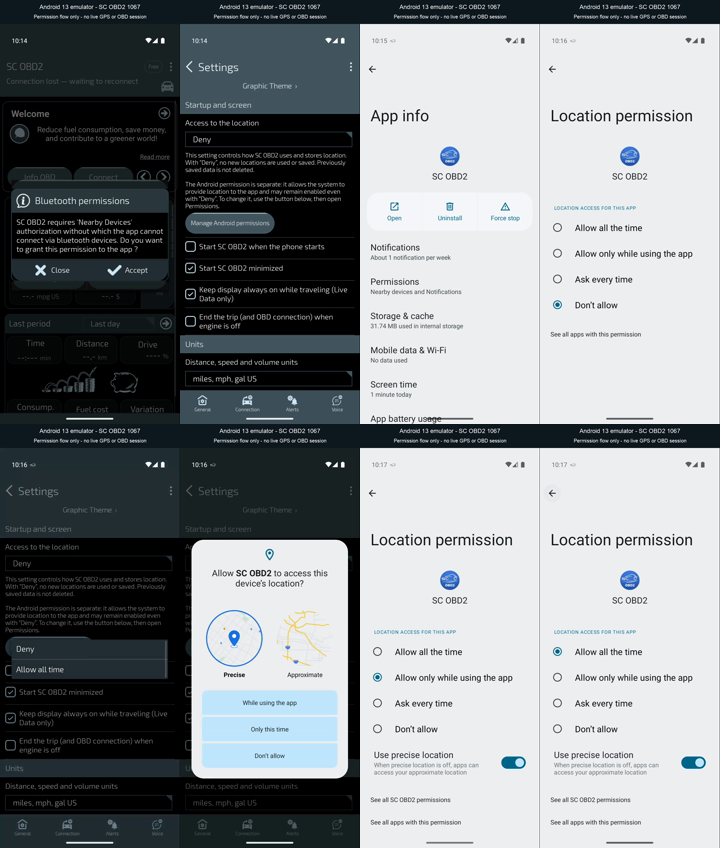
Bluetooth connectivity, the in-app choice to use location and Android permissions are not the same thing. This page explains the screens without asking you to grant everything.
Permission screens from an Android 13 emulator, with an English interface and no GPS or OBD session. Labels and paths may differ on other phones.
Trip location permission does not control all online processing: SDKs and services can use technical data and, for example, approximate location derived from an IP address. Denying GPS does not disable analytics or technical diagnostics. Data and services in the privacy notice →
The message explains why Smart Control OBD2 needs access to Nearby devices. It is an app explanation, not confirmation that an Android permission has been granted.
“Accept” continues the permission flow; check any system prompt. “Close” does not grant permission. Bluetooth approval does not itself enable GPS trip recording.
“Deny” tells the app not to use new locations for trips. It does not delete previously saved data or automatically revoke permissions granted in Android settings.
The “Manage Android permissions” button opens the phone’s permission settings. The in-app choice and Android authorisation are separate controls: they must agree for location features to work.
On “App info”, choose “Permissions” to see which permissions are granted. The image shows a test emulator’s state, not your phone’s state.
You do not need to clear data, uninstall or press “Force stop” to follow this guide. Menu names and layout can vary with Android version and manufacturer.
Android has “Don’t allow” selected here. Selecting location access inside the app cannot override a permission denied by the system.
OBD2 readings and diagnostics do not need trip coordinates. The phone’s required connection permissions still apply; Bluetooth discovery may have additional requirements depending on version and configuration.
5. “Allow all time” in the app: a preference, not a permission
The displayed menu belongs to Smart Control OBD2. Choosing “Allow all time” expresses a preference to use location during a background session, but does not itself grant the corresponding Android permission.
Consider this option only if you want location features. It is not a general requirement for reading OBD2 data. To avoid new location recordings, keep the in-app choice on “Deny”.
This is the system dialog. “Precise” and “Approximate” concern location accuracy; “While using the app” and “Only this time” concern when and for how long access is granted.
Approximate location does not give routes or departure/arrival points the same precision. Approval while using the app is not “all the time”: any background permission is managed separately.
7. “Allow only while using the app”: not “all the time”
Here Android permits location while the app is in use; the precise-location switch is on. This does not mean “Allow all the time” has been granted.
If you want a session’s location features in the background, follow the app instructions and check the requested setting. If you only need OBD2, do not grant “all the time” just to match the next screenshot.
8. “Allow all the time”: Android background authorisation
Android has “Allow all the time” selected here. This is the system permission for location access in the background; it remains separate from the “Access to the location” preference inside Smart Control OBD2.
Grant it only if you want those features. You can return to settings and change it. The permission does not create an account or start an OBD session by itself, and revoking it does not delete existing routes or exports.
You can change your choice without deleting the app.
To stop using new locations in trips, check the in-app “Access to the location” setting and choose “Deny”.
To change system authorisation, open App info → Permissions → Location and choose the required option. Names may vary.
To end the session, use the app’s disconnect control. Revoking permission is not a history-deletion procedure: follow the privacy instructions to remove data and copies.
On older Android versions Bluetooth discovery may also require location. “Without GPS” therefore does not promise operation without every location or connection permission. Android documentation ↗