Smart Control OBD2 · Connection
Connect your car. Start reading its data.
Two links to distinguish, one simple sequence to follow. Choose Classic Bluetooth or Wi-Fi, then check what actually arrives from the control unit.
Understand: four elements, two links.
- VehicleThe control unit exposes available data through the OBD2 socket.
- AdapterBridges vehicle communication to the phone connection.
- AndroidReaches the adapter over Classic Bluetooth/SPP or Wi-Fi/TCP.
- Smart Control OBD2Starts the OBD session and displays received readings.
“Paired” in Android settings does not mean “control unit connected”. Joining a Wi-Fi network also confirms only the first part of the path.
Prepare the adapter first.
Find the socket in the vehicle manual, insert the adapter without force and follow instructions for power and ignition state. Configure everything while stationary; do not run the engine in an enclosed area.
Where to look for the socket: illustrated guide →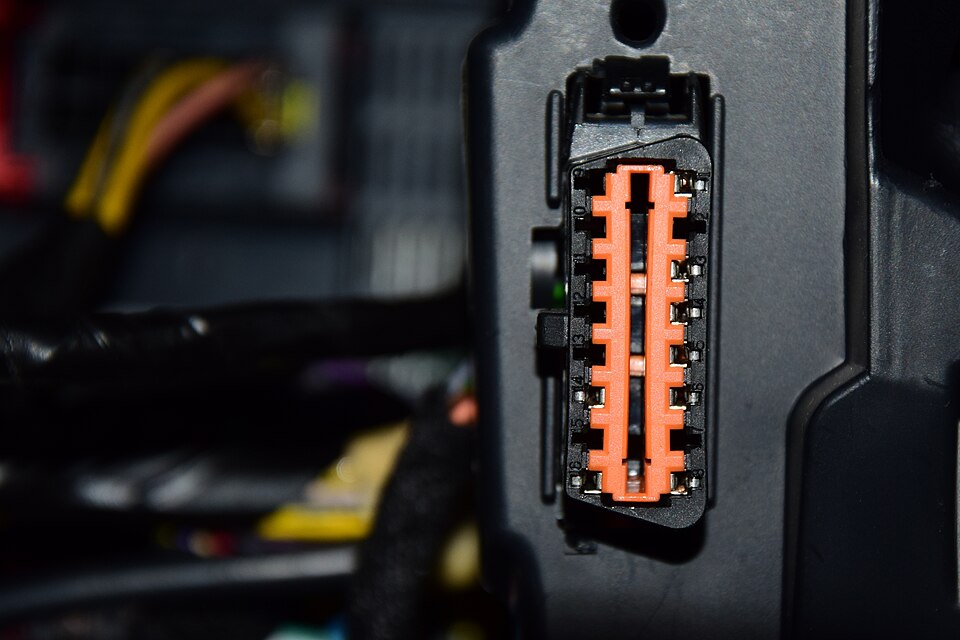

Connect: choose your transport.
Available today: Classic Bluetooth/SPP and Wi-Fi TCP/IP. BLE and USB are planned for unreleased SCA Runtime: do not buy a BLE/USB adapter for this app on the basis of that roadmap.
Android permissions and app choices are different.
| Permission or choice | Purpose | Without it |
|---|---|---|
| Bluetooth / Nearby devices | Find and use the Bluetooth adapter. | Bluetooth connection may fail. On older Android versions, discovery may also require location permission. |
| GPS / Location | New trip coordinates and geographic context. | No new geographic trace or start/end addresses. Existing data is not deleted; OBD diagnostics remains usable when the transport allows it. |
| Background location | Background geographic recording where supported. | That background recording is unavailable. “Allow all the time” is not needed solely for diagnostics. |
| Vehicle profile · choice, not permission | Context for calculations and driving history. | Compatible live readings remain available without new permanent driving history. Calculations requiring missing parameters are not reliable and must not be treated as valid results. |
See permission screens step by step → · Without an account, profile or GPS
Useful sessions show actual readings.
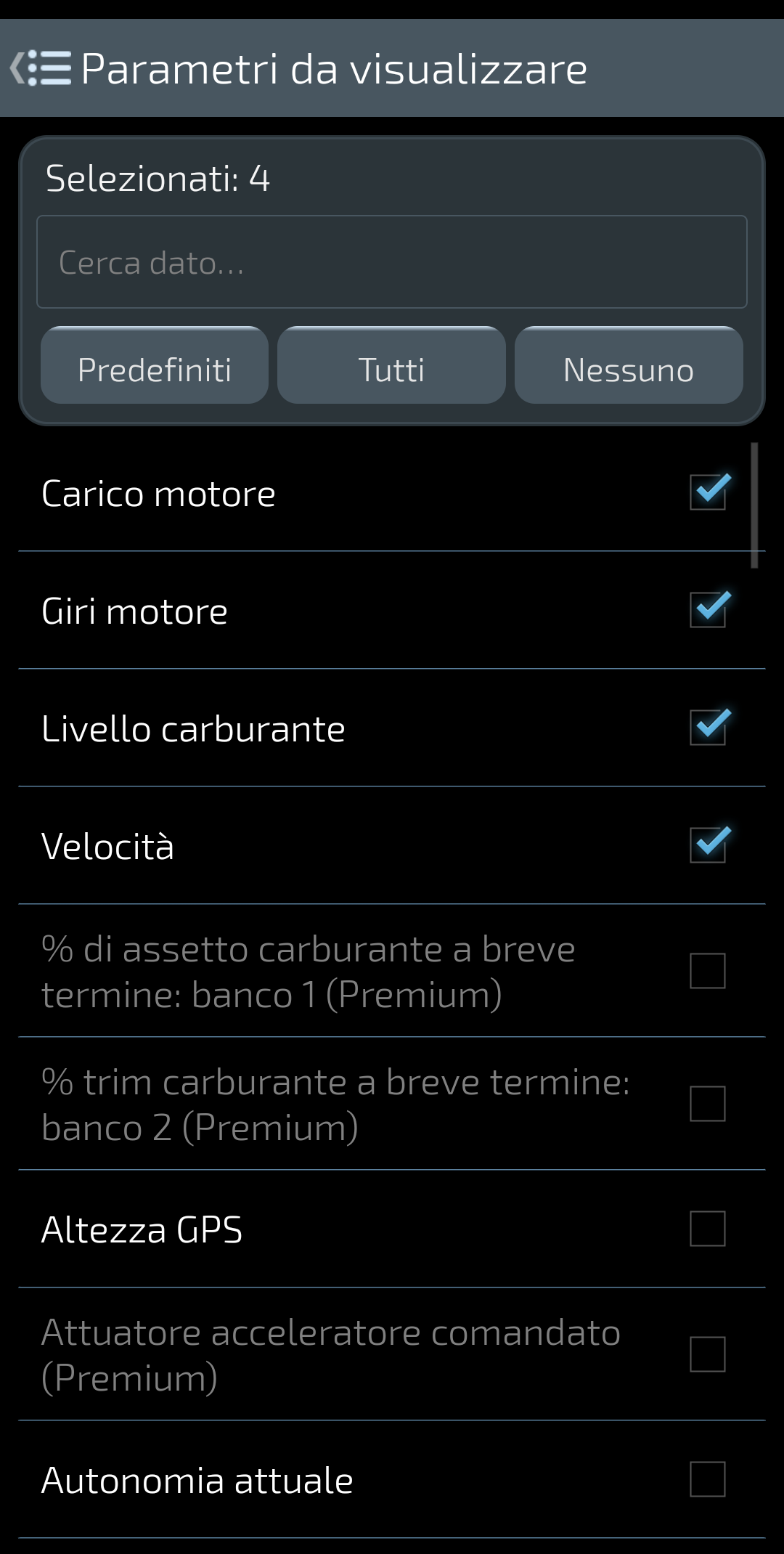
Select the data you want to observe. An item in the list does not guarantee that your control unit provides it.
Test capture, Italian interface.
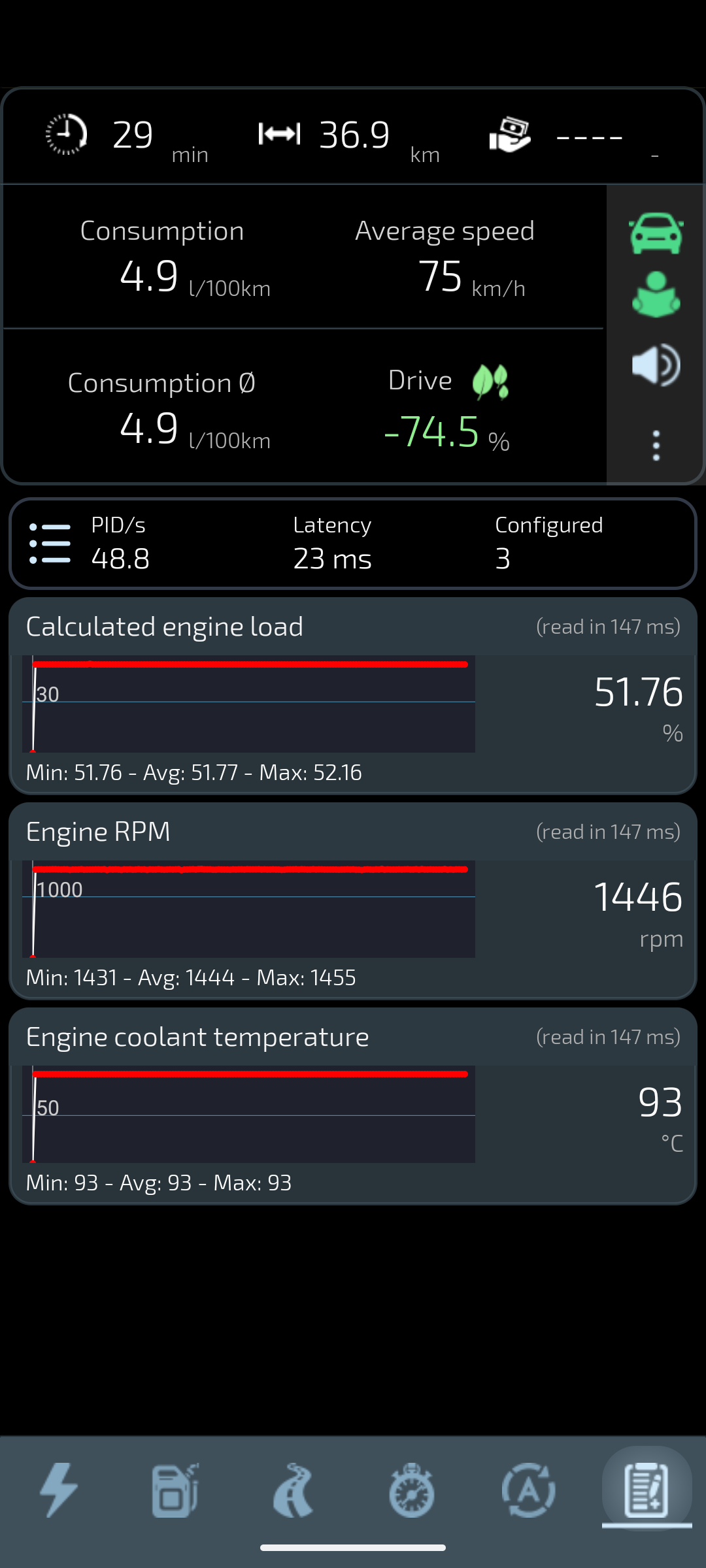
Load, RPM and temperature describe different aspects. Minimum, average and maximum refer to the displayed window; they do not certify engine health.
Demonstration OBD data, not a real road trip.
Troubleshoot: check the link that failed.
The adapter does not appear
Check power, exact model and variant, discoverability and Android permissions. Close other OBD apps that may occupy the connection.
Android connects but the control unit does not respond
Check the manual’s ignition requirements, selected configuration and app message. Pairing again does not necessarily fix the adapter–vehicle link.
Some readings arrive, others do not
Check selected parameters and actual vehicle coverage. Missing data is not zero. Do not blindly change advanced protocols or infer a fault from one missing reading.
The connection drops
Note when it happens, check power and the selected network, and review relevant Android power settings without indiscriminately disabling protections.
For support, provide app and Android versions, exact adapter, transport and observed message. Do not send a VIN, number plate, coordinates, PIN or password.